Buck: Coke Zero

cokezero

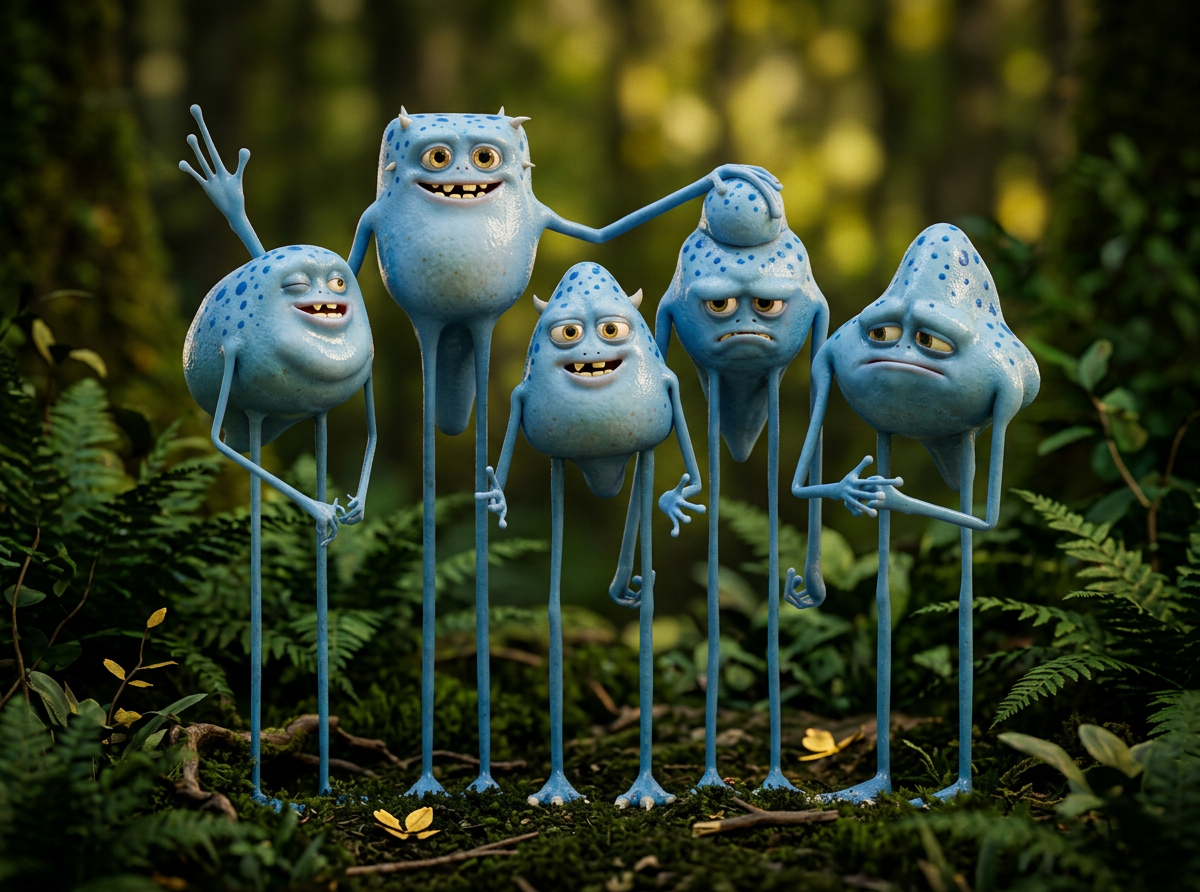
Hey, it finally released. Better late than never. I was the lighting/shading/fur lead on this project while working for Buck. Lots of good memories came back to me when this project resurfaced. View more on my site.

Three Legged Legs Evolution

3llmonkey

Oh ya!  Check out this recently released spot from Three Legged Legs.  I was lucky enough to help out with the lighting/shading/and fur work.  It was a blast working with The Legs, really cool guys who have a great sense of design driven direcection countered with a very technical skill set balanced between the three.

Master Zaps Hair tips

Master Zap explains how to render fur related scenes well here.

Shave and Haircut: Shadows (Mental Ray Hair Primitives)

Wow Mental Ray Hair Primitives. What a change of pace. Wish I would have learned this 3 months ago. My new friend Doug (who is a master cg artist) spent a few days testing shave and haircut and has completely changed my outlook on how fur needs to be rendered…it’s with hair primitives! Here are the major technical points are your shave globals, your light’s shadow settings, and your mental ray globals:

Render Globals:
Change renderer to mental ray. Use Rapid Hair adjust the anti alasing settings down to get faster render time

Shave Globals:
Once you’ve switched to the mental ray renderer in the shave globals you will now have the option to change to “hair primitives” this essentially switches your hair to geometry at render time. I assumed this would make for really high render times but has massivly improved render times, though you have to pay closer attention to your light’s shadow settings.

Light Attributes:

I only light hair primitives with spot lights. Once you’ve made your light, go to your attributes -> Shadows, check use depth map shadows. Scroll down down and expand the area that says “mental ray” here you will see attributes that deal with shadow maps. Enable shadow maps. I believe this overides your depth map shadow settings so you have to set a new shadow resolution (256 or 512 will give you soft shadows, 2048 4096 will give you sharp shadows). I’ve worked with shadows samples between 1 and 4 (I up the samples if I am getting bands), and I work with softness levels between .001 and .01 (this seems very sensitive).

This is a quick rundown, I’ll flesh this out further once I have more accurate results. Though using primitives has taken what was once a 3 + hour render down to about 23 minutes with very similar (even better) results.

Shave and Haircut: Shadows (Mental Ray Buffer)

Ok probably the most important thing I’ve learned over time is about Shave shadows. Much of this is probably really obvious…but here’s a quick rundown for Shave and Haircut Shadows using the buffer:

Geo Shadow – The geometry that the hair is attached to is casting shadows on the hair if this feature is turned all the way up. For some reason for quite some time I always thought this attribute affected how the hair casted shadow on to the geo under it…I was very wrong. So if you want to create a rim light pass for the fur, you would want to put a light behind your geo and hair and turn geo shadow all the way up.

Self Shadow – Hairs casting shadows upon themselves, that one is pretty straight forward.

How to avoid a major flickering problem when rendering with the buffer – If your throw a light into the scene (without properly setting up the shave shadow attributes) and animate the hair moving around you are most likely going to get a flicker/jitter/shimmer render. I’ve typically been working with a spot light as my key light. After creating my light with a scene that already has hair, I select the light then go to the shave menu ->Shadow -> Add selected lights. This will create a new attribute in your spot light. If you enter 1500 into the resolution and 30 into fuzz this will give you a good starting point to avoid those flickers. Joe Alter suggested those numbers himself and they’ve been working great for me.

Shave and Hair Cut – Part 3 (Procedure?)

Working with hair I have found that I can spend hours and hours adjusting maps and test rendering. I have found that it is extremely important to have some sort of procedure when attacking a project or else you can get lost for hours if not days fine tuning maps trying to get your look only to come to a dead end and start from scratch. Here is a work in progress of the steps I have begun to take when first starting:
1. Roughing out scale and root width is probably the best way to start. Keep the hair count down for quick renders until you start getting a good sense
2. Determining UV Sets or apply an additional fur set to faces can help you allocate denser hair where needed. See the UV section.
3. Determine how close you are actually going to get to your character. If your getting close to the face it’s important that you allocate a lot of time to render. The closer you get….the longer the render. As you pull back you’ll find that your root width doesn’t need to be as fine thus by using thicker hair you can use less….decreasing that render time.

(more detail to come)

Shave and Hair Cut – Part 2 (Uv Maps – UV Sets)

UVs are really important even though shave does a nice job of distributing hairs no matter what they may be, so if your uv’s aren’t equally distributed the hairs won’t group in unwanted places which is great. I have found recently that it is really important to create more than one shave hair set on a surface. By selecting faces on the geometry and creating new hair this can really pack hair in places and put less hair in others.

For example the hair on a animals face is typically very fine and short. This requires one to up the hair count to fill in places that require fine fibers of hair. If you Create a UV set for the head and one for the body, you can pack more hair into the head shave node and avoid this unnecessary hair count for the body.

If you are using UV sets you can assign them to these faces which is nice. I did think this was a good option for a while but then I had to start paint too many mattes and it was difficult to keep a handle on everything. (I have found that it is best to work with one nicely laid out uv set…anything more than that is too stressful :)

Note: Try not to include uv’s into a uv set that don’t contain any fur (like the inside of an animals mouth). If this fur has zero density you might as well not include it so what would be essentially invisible fur is now allocated somewhere more useful.

Note (2): If you are using two uv sets I have found that sometimes it is hard to match the look of to two hair sets at it’s seams. Make one of your two uv sets include both of your areas, then use the density map for each hair system to “blend” at the seam. I am still working at this technique but it seems to be a good solution for now.

Shave and Haircut – Part 1 (Scale)

I am deep in the throws of a project requiring Shave and Haircut for Maya. I have been using this software on and off for the past year or so. Slowly and progressively learning how to manage time and get good results. I have posted many questions on the forums hoping to get a response, but there don’t seem to be too many folks forging the threads for shave and haircut topics.

Anyway the first thing that I want to talk about is:

Geo Scale:
First things first, the scale of your object and the scale of your hair is very important. If the scale of your object changes, (for example your animal gets referenced into a scene and the animator scales him up) this will mess up how you originally intended the hair to look. So make sure your model’s scale is fixed and that in no way in the future will his scale change before starting to work with Shave.

Hair Scale:
By scaling up and down or using mattes to scale your hair, this can affect the integrity of your clumping down the road. I have found that it is best to create your hair, and then use the scale brush tool (make the brush big, zoom out and scale all the hair down to the approximate length). I hear this is much better than attenuate because attenuation can cut your hairs too short and you’ll be popping and fixing hairs rather than having control right off the bat (A great tip by Chris Chrisman). From there, I will minimally affect the hair using black and white maps until I have it right, or I will cut the hair, (this is an assumption but this seems to reinitialize the hair’s scale to a default setting rather than globally affecting all of it attributes).